# Verify your payment on the explorer
> For the complete documentation index, see [llms.txt](https://bsvblockchain.com/docs/llms.txt).
Check a BSV blockchain testnet payment you already sent on the explorer, from unconfirmed to confirmed, and read the fee it paid.
At this stage, you already sent a BSV blockchain testnet payment, from [Pay from a web app](https://bsvblockchain.com/docs/get-started/quick-start-browser/) or [Pay from a server](https://bsvblockchain.com/docs/get-started/quick-start-server/), and have its transaction ID. Now check that payment outside your wallet, on the testnet explorer. In this tutorial, you:
- Open the payment on the testnet explorer.
- Follow it from unconfirmed to confirmed.
- Read the fee it paid.
- Check the payment from code.
Looking up a payment does not change your wallet or your balance.
## Before you begin
Have the transaction ID of your testnet payment. In Pay from a web app, the `pay.mjs` script prints it. In BSV Desktop, click the payment under **Activity**, then **Copy ID**.
## How it works
The testnet explorer at [test.whatsonchain.com](https://test.whatsonchain.com/) reads the public testnet and shows any transaction by its ID. A new payment shows as unconfirmed until a miner includes it in a block, and from then on it shows the block and the number of confirmations.
## Open the payment on the explorer
Add your transaction ID to the end of the explorer address and open it in a browser. Replace `YOUR_TXID` with the transaction ID of your payment:
```text
https://test.whatsonchain.com/tx/YOUR_TXID
```
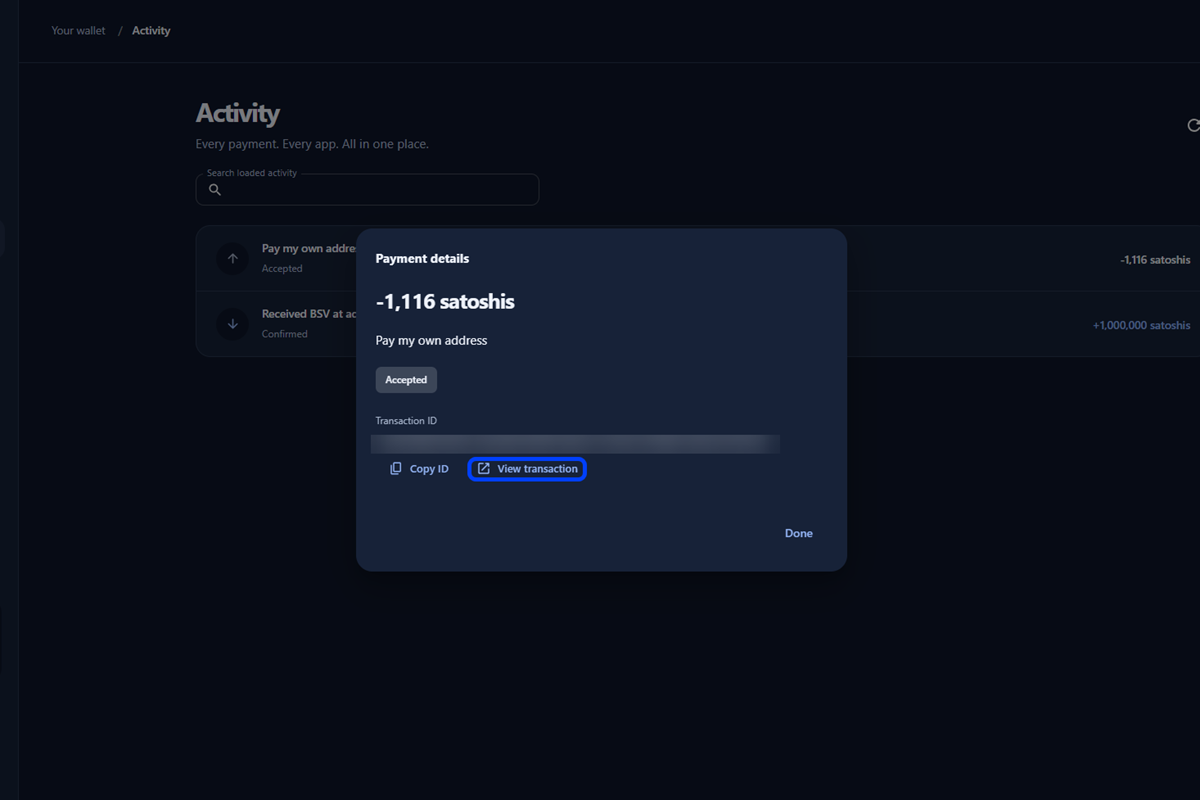
In BSV Desktop, click the payment under **Activity**, then **View transaction**, to open the same page.
 > For the first minute or two after a payment, the page can say **This page cannot be found. 404**, because the explorer has not listed the payment yet. Wait a minute and reload. If it still says so, check that the link starts with `https://test.whatsonchain.com/tx/`: the explorer at `whatsonchain.com`, without `test.`, is the Mainnet explorer and does not show testnet transactions.
## Follow the payment until it is confirmed
The transaction page changes once the payment is in a block. Take these steps to follow it:
**1. Check the unconfirmed payment**
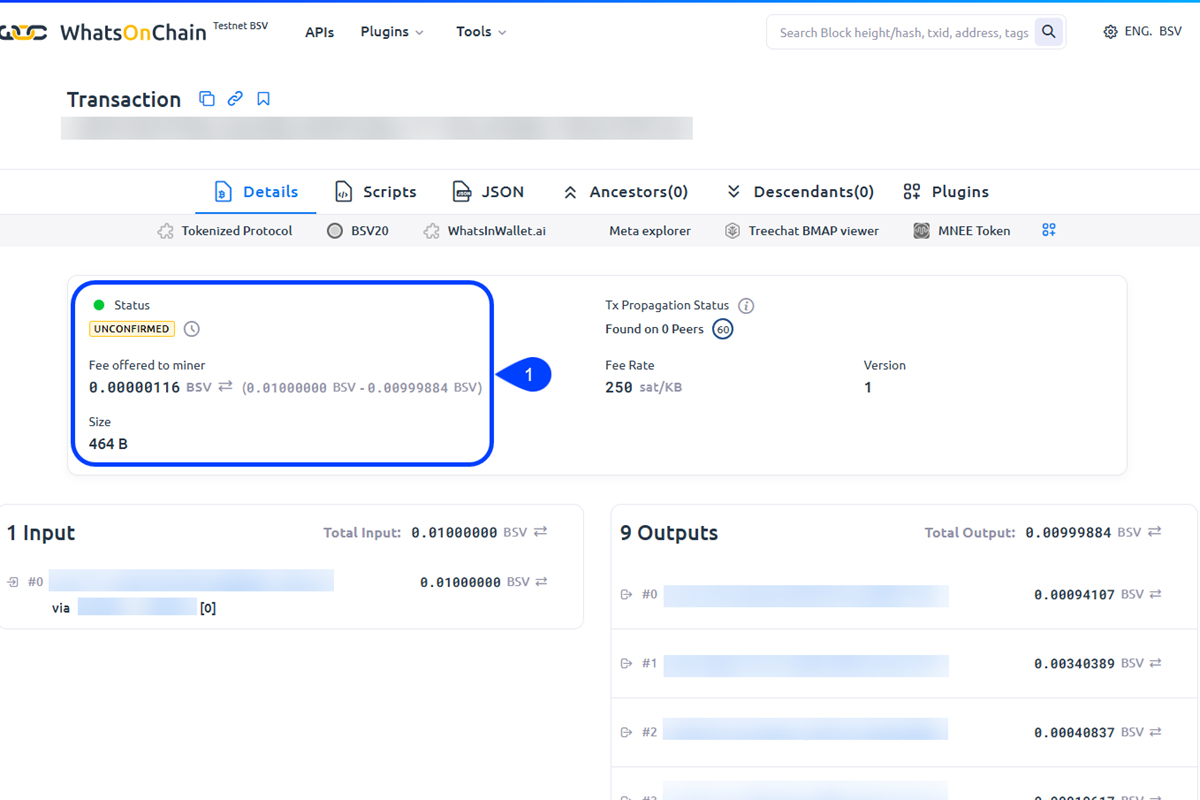
Right after the payment, the page shows **Status** as **UNCONFIRMED**, with **Fee offered to miner**, **Fee Rate**, **Size**, and the inputs and outputs. In the outputs, you find the amount you sent and the address it went to.
 **2. Reload until the payment is confirmed**
Reload the page from time to time. Once the payment is in a block, the **Status** line gives way to **Timestamp (utc)** and **Block** with its number, and the page shows **Confirmations** and **Fee Paid** in place of **Fee offered to miner**.
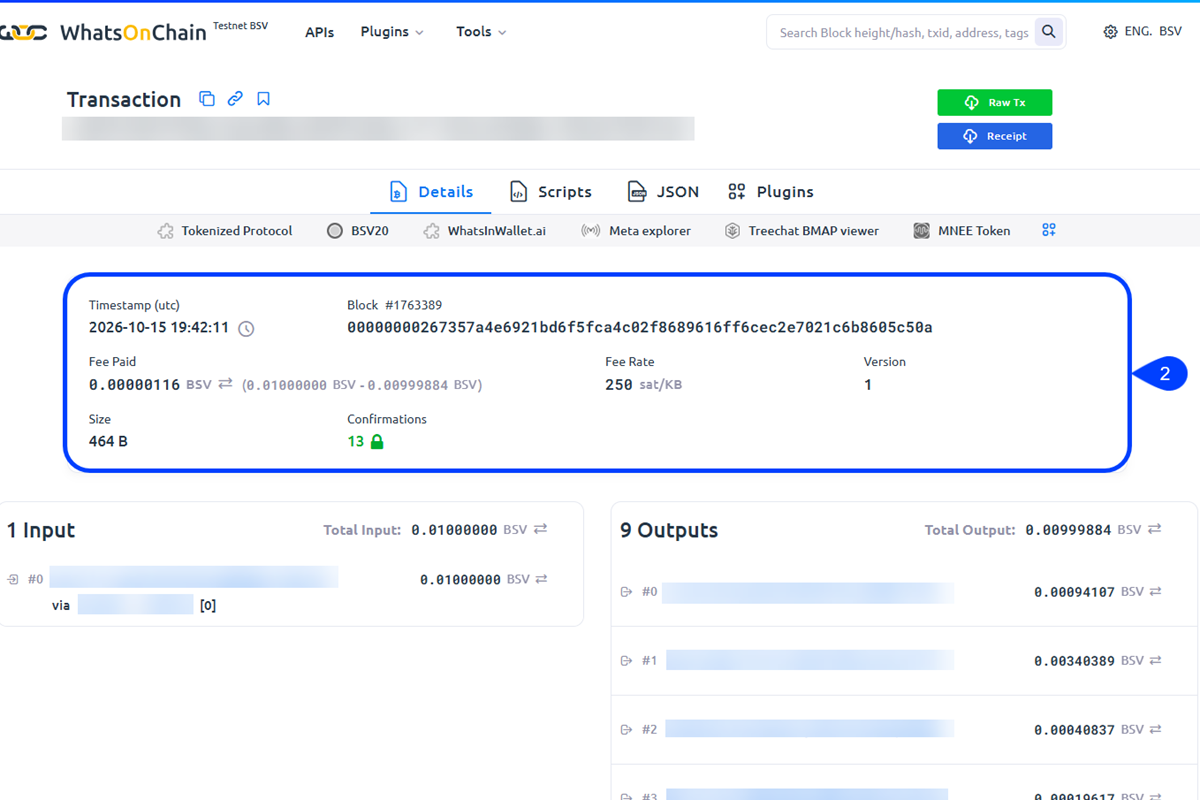 On testnet, the first confirmation can take from under a minute to about 20 minutes, depending on when the next block is mined.
> BSV Desktop can still show **Accepted** while the explorer already shows confirmations, and changes to **Confirmed** later. The explorer shows the state of the testnet.
## Read the fee
The fee on the explorer is the same fee you approved in your wallet:
**1. Read the fee on the explorer**
The fee is next to **Fee offered to miner**, or **Fee Paid** once confirmed, in BitcoinSV (BSV). Multiply it by 100,000,000 to get satoshis, so `0.00000116` BSV is 116 satoshis.
**2. Compare it with BSV Desktop**
In BSV Desktop, the **Spending Request** you approved showed the total with the fee, for example 1,116 satoshis for a payment of 1,000. The difference is the same fee as on the explorer. For a payment to your own address, the balance first goes down by the whole total, and BSV Desktop adds the amount back after you click **Get paid** on the **Wallet** page, open the **BSV ADDRESS** tab and click **Check for payments**.
## Check the payment from code
The explorer also answers requests from code, so your app can check a payment without opening the page:
**1. Request the transaction**
In a terminal, request the transaction from the WhatsOnChain testnet API. Replace `YOUR_TXID` with your transaction ID:
```bash
curl https://api.whatsonchain.com/v1/bsv/test/tx/hash/YOUR_TXID
```
**2. Read the response**
The response is JSON. Once the payment is in a block, it includes fields such as these:
```json
{
"txid": "",
"size": 464,
"blockheight": 1763389,
"confirmations": 13
}
```
While the payment is unconfirmed, the response has no `blockheight`. Amounts in the outputs are in BSV, and the response has no fee field, so the explorer page is the quickest place to read the fee.
The same request works from your own app. The `pay.mjs` script of [Pay from a web app](https://bsvblockchain.com/docs/get-started/quick-start-browser/) shows the simplest form, a link to the explorer built from the transaction ID.
## Next steps
With the payment verified, learn the model behind it, start a real project, or look up transactions in the browser:
- [Understand how your transaction worked](https://bsvblockchain.com/docs/concepts/how-your-payment-worked/)
- [Start from a template](https://bsvblockchain.com/docs/get-started/project-starter/)
- [Try the BSV blockchain in your browser](https://bsvblockchain.com/docs/get-started/try-it/)