

Back up and recover a wallet
Back up a BSV Desktop wallet and restore it on another device with the same keys, balance and history. Do it before the wallet holds coins you care about and before you move to a new computer, since a lost device with no backup means lost coins. The steps use testnet and were not tested on Mainnet. This page was written against BSV Desktop 3.3.1. At the end, the other device shows the same identity key, balance and Activity as the first one, and can spend the coins.
How it works
A complete backup has two parts, and the restore needs both:
| Part | What it brings back | Where in BSV Desktop |
|---|---|---|
| Recovery phrase, or two of three backup shares | The keys, so the same identity key and the same addresses | Settings, Back up & recover |
| Wallet data file, encrypted with a passphrase | The records of every coin and payment, so the balance and the history | Settings, Wallet data files |
With the keys alone, the restored wallet finds only recent payments to its BSV address that are not spent yet. The change from your own payments and the history come back only from the wallet data file, which holds no keys.
Save the keys
The first step is to save the keys, with the recovery phrase, with backup shares, or both:
Anyone with the recovery phrase, or with two backup shares, can spend your coins. Keep them offline and out of screenshots, code and websites, and never share them.
Any two shares recreate the recovery phrase, so losing one share is not a problem. A new set of shares does not cancel an older set.
Export the wallet data file
With the keys saved, export the records that hold the balance and the history:
wallet-data.brc39 by default.BSV Desktop confirms with “Encrypted wallet export saved.”. The file covers the current network and the records up to the moment of the export, so export it again after new payments. Keep the passphrase apart from the file, since the file cannot be opened without it.
Restore the keys on the other device
On the other device, install BSV Desktop and restore the keys first:
The Everyday Identity Key in Settings, Your identity now matches the first device. The balance shows only recent payments to the BSV address that are still unspent, often 0, until the wallet data file is loaded.
Restore the balance and history
With the keys in place, load the wallet data file:
wallet-data.brc39. BSV Desktop shows “Verified N records. Review the identity and network below.” and adds a card under Saved imports and recovery with the network, the number of records and the Identity.Check that the Identity on the card matches the Everyday Identity Key of the wallet, then choose Use as main device copy on the card and confirm.
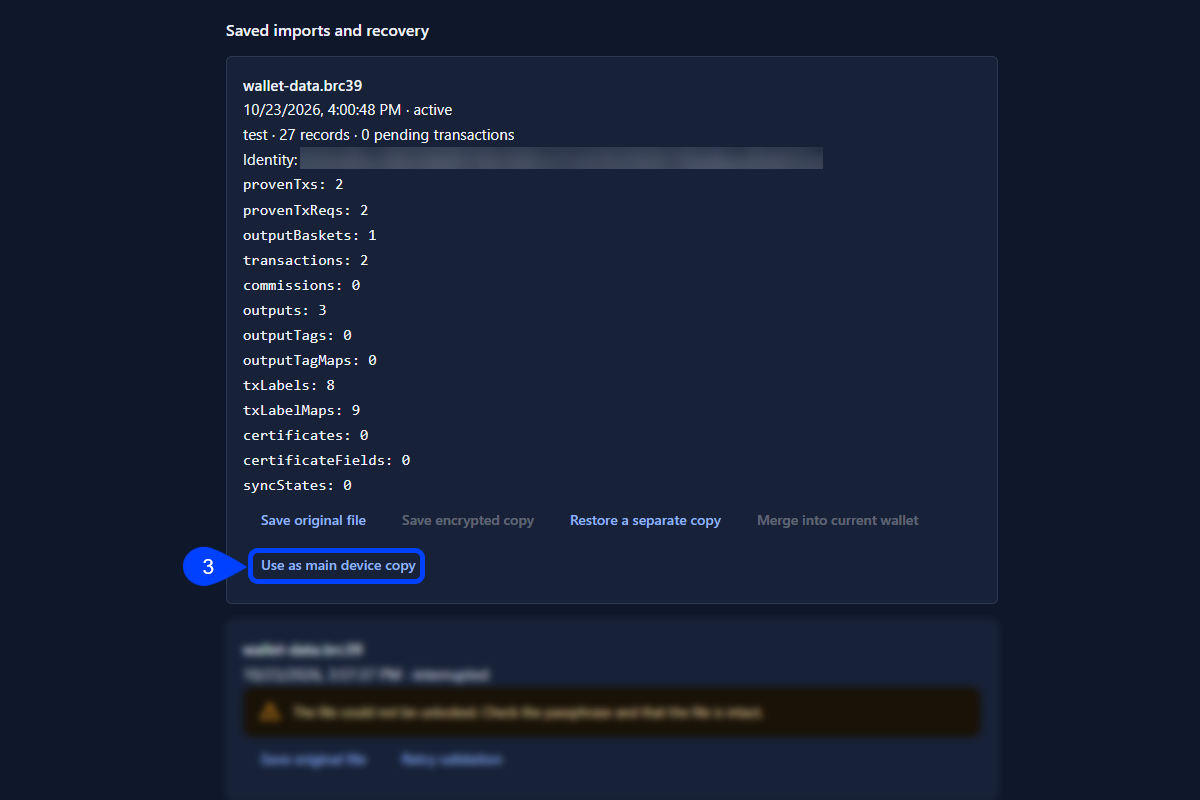
The wallet now shows the balance and the Activity entries of the first device, on the network of the file, and can spend those coins.
Troubleshooting
Restore never finishes on a new install #
On every try, Restore wallet answers Your wallet is still getting ready. Try again in a moment. Close BSV Desktop, including its icon in the system tray, open it again, wait about 30 seconds and restore again.
Wallet data file does not open #
The message ends with The file could not be unlocked. Check the passphrase and that the file is intact. The passphrase is not the one used for the export. The failed try stays under Saved imports and recovery as interrupted. Enter the right passphrase and choose Open and validate wallet file again.
Merge into current wallet shows an error #
On the card, Merge into current wallet ends with Invalid wallet file request, and the balance does not change. Use Use as main device copy on the same card instead.
Payment to an older address is missing #
The BSV address changes every day, by the UTC date. Check for payments looks at the last four days and at every address this device has shown, so on a new device it misses older addresses. On the BSV ADDRESS tab, enter the day you shared the address in Recover a payment sent to an older address.
Related articles
To learn more about wallets on the BSV blockchain, review these articles: