

BSV Desktop
BSV Desktop is BSV Association’s desktop wallet for macOS, Windows and Linux. It keeps your keys and your coins on your device, and apps on the same computer ask it to sign through the BRC-100BSV Request for Comments 100, the standard interface between apps and wallets interface, so no private key goes in your code. You approve each payment in the wallet. These docs use it on testnet for every example, as in Send a payment from a web app.
Versions
Download BSV Desktop from desktop.bsvb.tech, which links to the release files on GitHub for each system. This page was written against BSV Desktop 3.3.1. The bottom of Settings shows the installed version next to Check for updates, and BSV Desktop also offers a new version on its own, with Download Update.
Version 3 drops the phone number and password login and the built-in STAS tokens of version 2. If you sign in to version 2 that way or hold STAS tokens, stay on version 2, or create a new wallet in version 3 and send your funds to it. Before any upgrade, back up your recovery phrase or private key. To restore a version 2 wallet in version 3, choose Import an existing wallet, enter its 24-word recovery phrase or 64-character hex private key. If the screen shows Created in BSV Desktop 2, tick it. The release notes list every change.
Networks
BSV Desktop works on Mainnet, Testnet, TeraTestNet and Tera Scaling. A new wallet opens on Mainnet. To change it, click the network button at the top right, or open Settings, then BSV network, and choose Switch network. The wallet keeps the same identity on every network, with a separate balance and history for each one.
On testnet, the button at the top right reads Testnet and the balance shows BSV · TEST. Use testnet to learn and test, since its coins are free and have no value. A payment on Mainnet moves real BitcoinSV (BSV) and cannot be undone.
How apps connect
While BSV Desktop runs, it listens on your computer only, at 127.0.0.1:
| Port | Protocol | Use |
|---|---|---|
| 2121 | HTTPS, with a certificate BSV Desktop creates on first launch | The BRC-100 interface for apps |
| 3321 | HTTP | The same interface without TLS |
Apps reach it with WalletClient from @bsv/sdk, from a script or from a page served on your computer:
import { WalletClient } from '@bsv/sdk'

const wallet = new WalletClient('auto', 'example.com')'auto'finds the running wallet, so the app does not set a port.example.comis the name of your app. BSV Desktop shows it in every request it asks you to approve.
On first launch, BSV Desktop asks you to trust its certificate. The local connection does not ask for a password, so every request that spends coins or uses your keys waits for your approval in the wallet.
Approvals and permissions
Each payment opens a Spending Request with the app name, the description and the total with the fee, and the payment goes out only after Authorize. An app that stores data in a basket or uses a protocol asks for that permission first, and granting it costs a small fee in satoshis. A satoshi is the smallest unit of BSV, and 100,000,000 satoshis make 1 BSV.
Apps lists the apps that connected and what each one can do. The switches that decide what needs your approval are in Settings, Advanced settings, where Require permission for spending wallet funds is on by default.
Transaction fees
BSV Desktop sets the fee from a rate in satoshis per kilobyte, so a larger transaction pays more. The rate is in Settings, Advanced settings, Transaction fees:
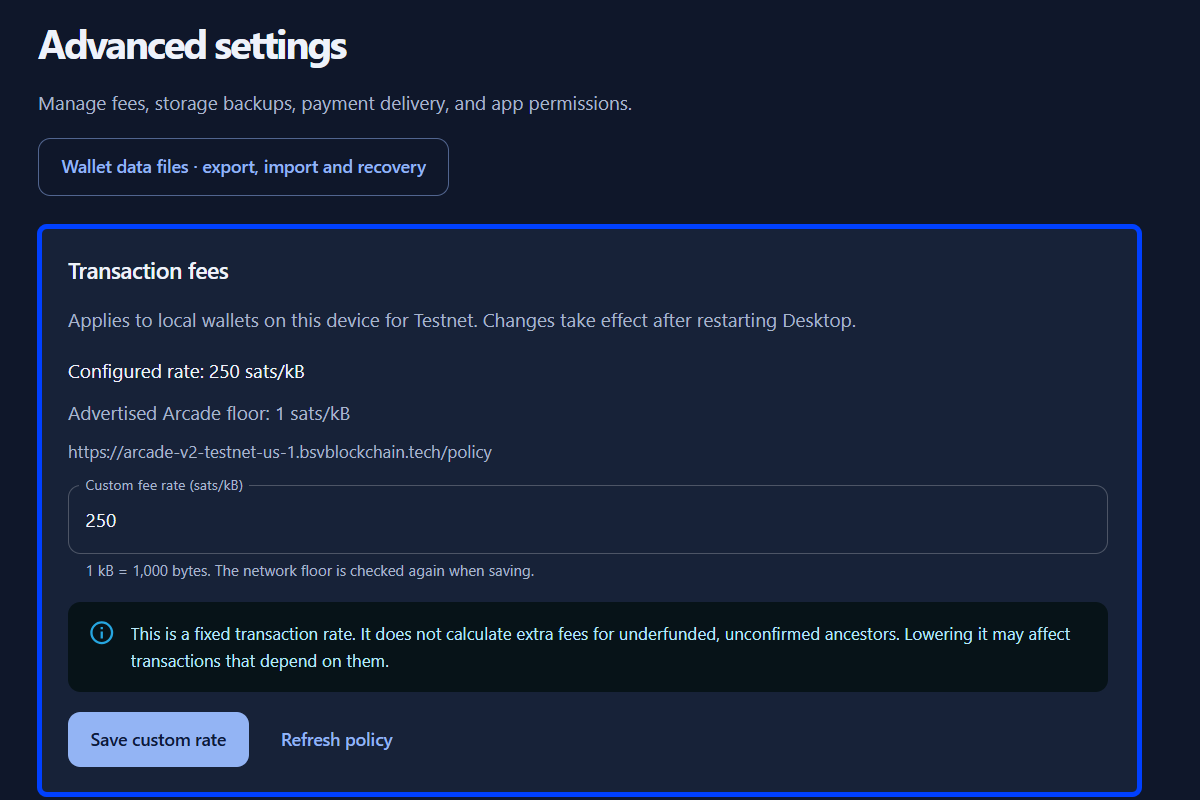
- Configured rate is the rate in use, 250 sats/kB by default, where 1 kB is 1,000 bytes.
- Advertised Arcade floor is the lowest rate the network accepts, read from the policy address below it.
- A custom rate applies to wallets stored on this device, for the current network only, and takes effect after you restart BSV Desktop. The wallet checks the floor again when you save it.
- The rate is fixed: it adds no extra fee for unconfirmed parent transactions that paid too little, and lowering it may affect transactions that depend on them.
Receive and send payments
The Payments screen has two tabs:
- Send pays a name, an identity key, a payment link or a BSV address. Enter it in Recipient, add the Amount in satoshis and choose Review payment. The review shows the amount plus “network fee” without the fee itself, which appears in Activity after Pay, added to the amount. The wallet has no option to send the whole balance, so a payment of the full balance fails with Insufficient funds: send the balance minus the fee.
- Receive opens on WALLET PAYMENT, with Copy identity key and Copy payment link for another BRC-100 wallet. While this tab is open, Open to live payments lets another wallet pay you directly. The BSV ADDRESS tab shows an address any BSV blockchain wallet or faucet can pay, with Copy address. A testnet address starts with
morn.
The BSV address changes every day, by the UTC date, and the old ones keep working. While the BSV ADDRESS tab is open, BSV Desktop adds payments to the address on its own, and Check for payments checks the addresses of the last four days and every address this device has shown. For a payment to an older address, enter the day you shared it in Recover a payment sent to an older address.
Back up your wallet
The recovery phrase, twelve words for a wallet created in version 3, restores your wallet’s keys on another device. Settings, Back up & recover shows it and can split it into three backup shares, any two of which restore it. The balance and history come back with a wallet data file, which Wallet data files exports encrypted with a passphrase, without the keys. Keep both, as in Back up and recover a wallet.
Anyone with your recovery phrase can spend your coins. Keep it offline, never paste it into code or a website, and never share it.
Related articles
To learn more about using BSV Desktop on the BSV blockchain, review these articles: