

Send a payment with an AI agent
Ask an AI agent for your first BitcoinSV (BSV) payment and let it read these docs, write the scripts and run them, while you keep the steps that move coins. The agent connects to your testnet wallet in BSV Desktop, and no private key goes in the code. Use it when you build with Claude Code and want to see how it handles a payment before you trust it with a real project. The example runs standalone in an empty folder, and at the end you have a testnet payment you approved and its transaction ID on the explorer.
Before you begin
- Claude Code installed.
- Node.js 22 or newer.
- BSV Desktop on testnet with free testnet coins. If you do not have it yet, follow Set up a testnet wallet and Get free testnet coins in the web app guide.
How it works
The agent does the work that happens in code, and you do the work that happens in the wallet:
- Agent
Works in the code
- Reads these docs
- Installs
@bsv/sdk - Writes a script that connects to BSV Desktop through
WalletClient - Checks that the wallet is on testnet
- Runs the payment
- Reads the payment status from BSV Broadcaster
- You
Work in the wallet
- Get testnet coins if the wallet is empty
- Give the agent your testnet address
- Approve the payment in BSV Desktop with Authorize
The agent reads the docs through the BSV blockchain docs server, follows the rules in your project, and stops to ask you for each step on your side.
Set up the project
Create an empty folder for the agent and open it in the terminal, then complete these steps in it:
Connect the BSV blockchain docs server
Add the docs server, as in Connect your AI tool with MCP:
claude mcp add --transport http bsv-docs https://bsvblockchain.com/docs/mcpAdded HTTP MCP server bsv-docs with URL: https://bsvblockchain.com/docs/mcp to local configAdd the bsv-dev rules
Create CLAUDE.md in the folder and paste the bsv-dev rules from Give agents the docs in Markdown. With the bsv-dev skill installed, the agent offers you the same rules, and you add them to the file yourself (Install the BSV blockchain agent skill). Claude Code reads this file at the start of every session. The rules tell the agent to read the BSV blockchain docs, build on testnet, keep private keys out of the code and ask you for the coins and the approval.
Ask the agent for the payment
With the project ready, make the request and check what the agent builds:
Send the request
Run claude in the project folder and type the request:
Send my first BSV payment from a small Node.js script. Build it and run it.The agent reads the docs, installs @bsv/sdk and writes its scripts, for example pay.mjs. Claude Code asks you before the agent runs a command such as npm install or node, so read each command before you allow it. Before it pays, the agent checks the connection to BSV Desktop and confirms that the wallet is on testnet. Then it stops and asks you for the steps it cannot do: testnet coins if the wallet is empty, your testnet address, and the approval in BSV Desktop.
Check the script
While the agent waits, open the payment script it wrote and check that it:
- connects to the wallet with
new WalletClient(...)from@bsv/sdk, with no private key, recovery phrase or.envsecret; - stops unless the
networkfield returned bywallet.getNetwork()istestnet; - sends the payment with
wallet.createAction(...), to the address and amount you expect; - after the wallet returns the transaction ID, sends the transaction to BSV Broadcaster and reads its status there;
- reports the payment as final only at
SEEN_ON_NETWORK,MINEDorIMMUTABLE, and stops with an error onREJECTEDorDOUBLE_SPEND_ATTEMPTED.
The script is the agent’s own, so names and messages vary from run to run.
Give the agent your address
The agent pays to your own testnet address, so copy it in BSV Desktop and send it to the agent:
Open the Receive screen
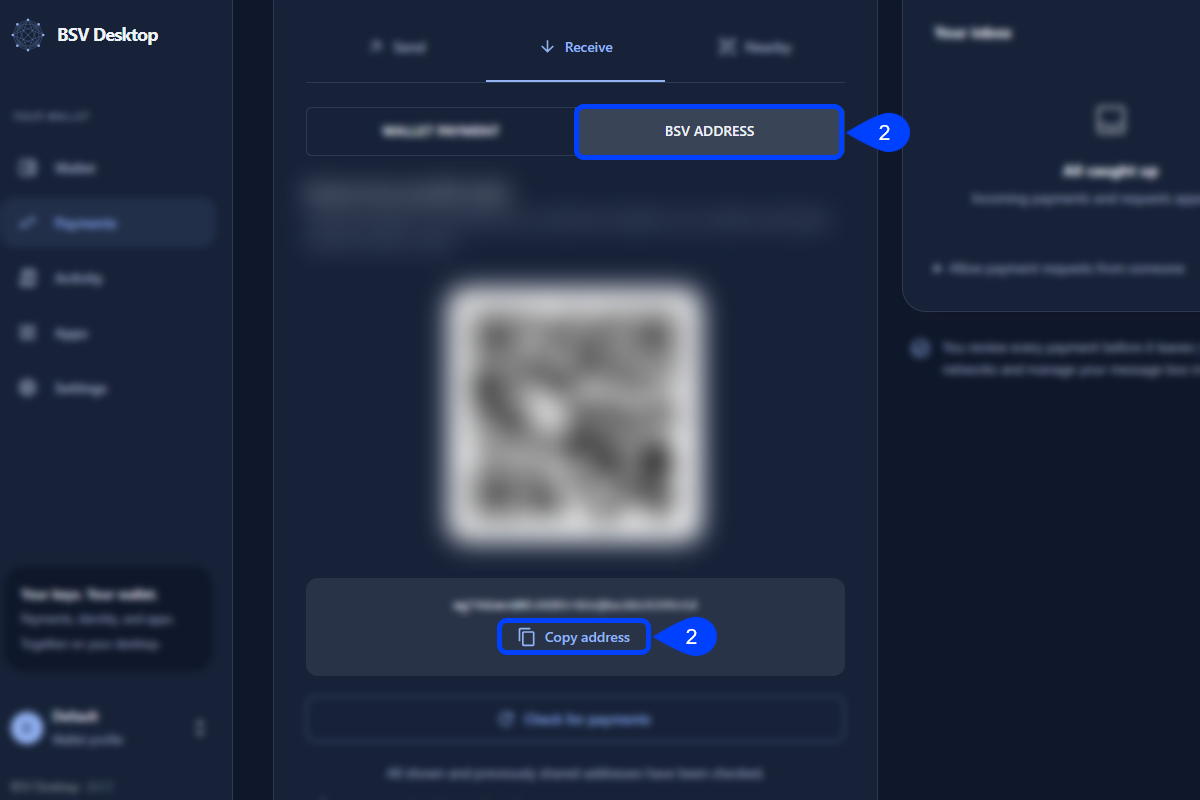
In BSV Desktop, open Payments, then Receive.
Copy your testnet address
Select the BSV ADDRESS tab and click Copy address. A testnet address starts with m or n.
The WALLET PAYMENT tab opens first and copies a peerpay: link, not an address.
Reply to the agent
Tell the agent that the wallet has coins and give it the address, in place of YOUR_TESTNET_ADDRESS:
My wallet already has testnet coins. My address is YOUR_TESTNET_ADDRESSApprove the payment
A sent payment cannot be undone, so check the request in BSV Desktop before you approve it:
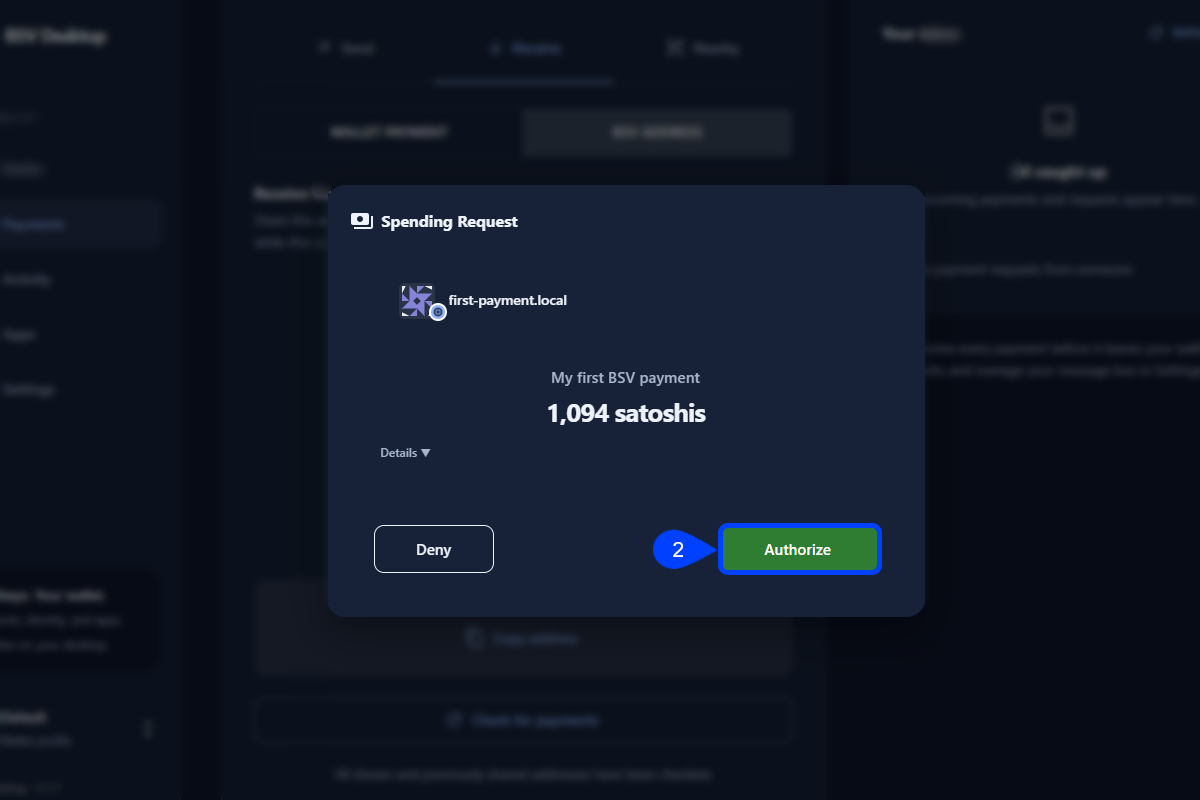
Check the Spending Request
The agent runs the payment script, which waits until you answer in BSV Desktop. The wallet opens a Spending Request with the app name the script set, the payment description and the total with the fee, for example 1,094 satoshis for a 1,000 satoshi payment. The fee depends on the coins the wallet spends, so the total can differ. A satoshi is the smallest unit of BSV, and 100,000,000 satoshis make 1 BSV. Check that the app name is the one the script set and that the amount is the one you expect.
Authorize the payment
Click Authorize:
After you approve, the script prints the transaction ID, sends the transaction to BSV Broadcaster and prints its status, for example:
Wallet network: testnet
Requesting a payment of 1000 sats to YOUR_TESTNET_ADDRESS. Approve it in BSV Desktop...
Transaction ID: <64 character transaction ID>
Arcade broadcast: success broadcast successful
Arcade status: ACCEPTED_BY_NETWORK
Arcade status: SEEN_ON_NETWORK
Payment is final.
Explorer (for viewing only): https://test.whatsonchain.com/tx/<64 character transaction ID>The labels in this output say Arcade, the former name of BSV Broadcaster. For an app, a payment of this size is final when BSV Broadcaster reports SEEN_ON_NETWORK or later and no competing transaction exists, with no wait for a block. At that status the transaction is not in a block yet. The explorer link is only to see the transaction: if WhatsOnChain shows This page cannot be found, it has not listed the payment yet, so wait a minute and reload.
Your Available balance in BSV Desktop goes down by the amount plus the fee. While the BSV ADDRESS tab is open, BSV Desktop adds the payment back to your wallet, so only the fee is spent.
Next steps
With the payment sent, check it on the explorer, then start a real project: