

Start a project from a template
Start a new BSV blockchain app from a working project instead of an empty folder. create-bsv-app generates a React app with the wallet connection already written, so it connects to BSV Desktop the first time you run it. In this guide, you:
- Generate a React app with
create-bsv-app. - Run it on your computer and connect it to BSV Desktop on testnet.
- Find the code that makes the connection, so you can build your own features on it.
Start from a template when you begin a new app. The project runs on its own and needs no existing codebase.
Before you begin
Make sure you have:
- Node.js 22 or newer.
- BSV Desktop open and set to testnet. If you do not have it yet, follow Set up a testnet wallet. Connecting needs no coins.
How it works
The template is a Vite and React app. When you click Connect wallet, it creates a WalletClient from @bsv/sdk, which finds BSV Desktop running on the same computer and asks it for your identity key, the public key that identifies your wallet to apps. Your private key stays in BSV Desktop.
Generate the project
The first step is to generate the project with create-bsv-app and its react starter:
Run the generator
In a terminal, in the folder where you keep your projects, run the command below. It creates the folder my-react-app, writes the app into it and installs its dependencies:
npx create-bsv-app new my-react-app --starter react --yesAfter about half a minute, the command ends with:
Scaffolded my-react-app (15 file(s) written).

Dependencies installed.

Next:
  cd my-react-app
npm run devEarlier in the output, create-vite prints its own next steps with npm install. Skip them, since the dependencies are already installed.
Run the app and connect your wallet
With the project generated, start it and connect it to BSV Desktop:
Check the network in BSV Desktop
In BSV Desktop, check that the balance shows BSV · TEST. The app connects to whichever network the wallet is on, so this is the only place where testnet is set.
Start the app
Back in the terminal, move into the project folder and start the development server:
cd my-react-app
npm run devThe server is ready in about a second and prints the address of the app:
  VITE v8.3.4  ready in 1130 ms

  ➜  Local:   http://localhost:5173/
➜ Network: use --host to exposeConnect the app to BSV Desktop
In your browser, open the Local address from the terminal. The page shows BSV app and a Connect wallet button.
Click Connect wallet. The button is replaced by Connected: followed by the first 16 characters of your identity key.
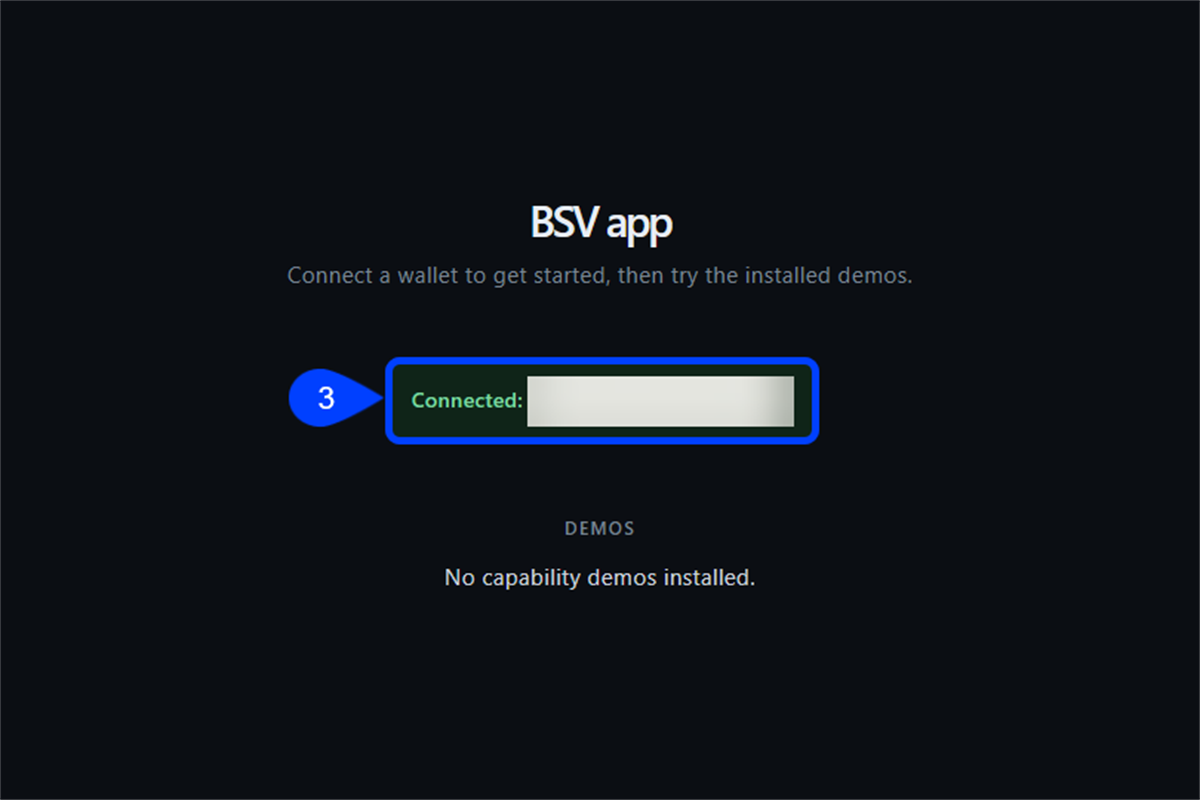
BSV Desktop shows no window when the app connects, so there is nothing to approve.
Find the connection code
The connection you just used is ready to build on. It lives in three files under src/bsv/:
| File | What it does |
|---|---|
walletAcquisition.ts | connectDesktopWallet() creates the WalletClient, checks that a wallet answers, and reads the identity key |
WalletContext.tsx | Keeps the wallet, the identity key and the connection status for the whole app, and shares them through the useWallet() hook |
ConnectWallet.tsx | The Connect wallet button |
This is the function that makes the connection, in src/bsv/walletAcquisition.ts:
export async function connectDesktopWallet (): Promise<{ wallet: WalletInterface, identityKey: string }> {
  const wallet = new WalletClient('auto')
  const { authenticated } = await wallet.isAuthenticated()
  if (!authenticated) throw new Error('No authenticated desktop wallet found')
  const { publicKey } = await wallet.getPublicKey({ identityKey: true })
  return { wallet, identityKey: publicKey }
}With 'auto', WalletClient looks for a wallet running on the same computer, such as BSV Desktop. The other two calls do this:
isAuthenticated()checks that a wallet answers and is ready to use.getPublicKey({ identityKey: true })asks for the identity key of the wallet, the key apps use to recognize it.
To use the wallet in a component of your own, call useWallet() inside it, as src/bsv/Home.tsx does with const { connected } = useWallet(). The hook also returns wallet, the same WalletClient, so your component can call any wallet method on it.
The template installs @bsv/sdk 2.x, while the guides on this site use 3.x. Keep that in mind when you add code from a guide.
Troubleshooting
App cannot find BSV Desktop #
After you click Connect wallet, the app shows No desktop wallet found because BSV Desktop is closed. Open BSV Desktop, check that the balance shows BSV · TEST, click Cancel and then click Connect wallet again.
Next steps
With the app connected, add features that use the wallet: